 Real Capture Canvas
 Real Capture Canvas
Real Capture Canvas is a video capture control for use with REALbasic 2006r3 and newer. With Real Capture Canvas, you can add video and audio capture features to your REALbasic projects.

Getting Started with Real Capture Canvas
As its name implies, Real Capture Canvas is a Canvas control, so you can also use it like any other REALbasic Canvas when not in use as a capture control.
Installation
1. To begin using the Real Capture Canvas video capture control, locate the RealCaptureCanvas folder in the Finder.
2. Drag the folder from the Finder into a new REALbasic project or import it via REALbasic's File->Import menu.
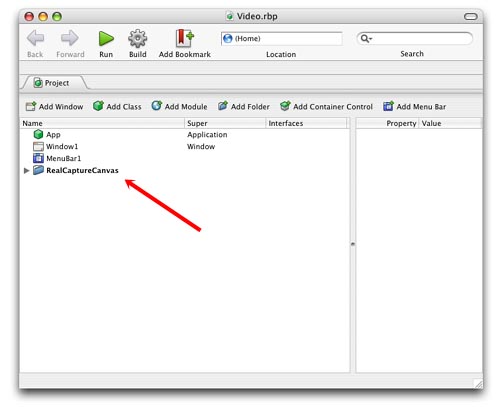
3. The RealCaptureCanvas folder contains mulitple elements, but only one is important for developers: the Canvas named RealCaptureCanvas.

4. In the Window Editor, select Project Controls from the Controls popup menu. RealCaptureCanvas appears in the list of controls for the project.
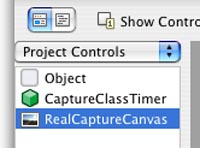
5. Then, drag the RealCaptureCanvas from the list to the current window. Alternatively, you can add a Canvas control to the window and change its Super property to RealCaptureCanvas.
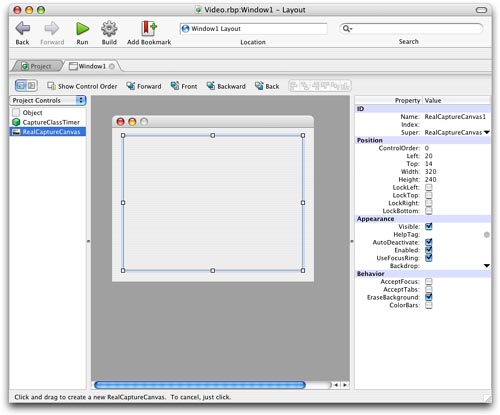
The RealCaptureCanvas control is now ready for use.
Programming with the Real Capture Canvas
Initializing the Control
To activate a Real Capture Canvas, you must call its Initialize Method, passing your Real Capture Canvas registration code to the method. It is customary to perform this function in the control's Open Event.
Me.Initialize("Your Registration Code Goes Here")
The Init function prepares the control for video and sound capture, and selects default devices. Then, call additional methods to begin working with the control. You'll probably want to activate the preview next:
me.VideoPreview = TRUE
Why are there so many Methods compared to Properties?
The Real Capture Canvas has a couple Events, a few Properties, and numerous Methods (which are presented in this document). Although the number of Methods seems large in comparison to Properties, many Methods use the Assigns keyword to make them act like Properties. This gives you the opportunity to ovveride specific methods, while maintaining the look of Properties in your code.
For example, to activate preview, use the VideoPreview(Assigns State as Boolean) Method, like so:
RealCaptureCanvas1.VideoPreview = TRUE
Conversely, to deactivate preview, use:
RealCaptureCanvas1.VideoPreview = FALSE
Now What?
Read this document to learn about the various functions of the control or view the code in the sample project that accompanies the Real Capture Canvas. All of the Real Capture Canvas functions are implemented in the test project, so it can be a useful starting point for you own video capture projects.
Real Capture Canvas is Copyright (c)2006 SONICAMIGOS.COM.
SONICAMIGOS.COM is not affiliated with Real Software.
REALbasic is a registered trademark of Real Software, Inc.